
Claude in Chrome Can Control Your Browser — Here’s How to Use It Safely
Anthropic's Claude in Chrome extension can read pages and fill forms. Learn how to configure permissions, isolate profiles, and use browser AI safely.


Table of Contents
Claude can now act directly inside Chrome, reading pages, filling forms, and clicking buttons on your behalf. That level of access is powerful, but it also means you need to be careful about what you let it see and do. This post walks through what the extension can actually do, where the risks sit, and how to set it up so you get the help without handing over more than you intend.
What Claude in Chrome actually does
The Chrome extension lets Claude interact with web pages as a human would. It can read visible content, follow links, fill inputs, and click buttons based on your instructions. Instead of copying and pasting text into a chat window, you ask Claude to do things directly on the page you’re viewing.
From a technical standpoint, the extension needs broad permissions to function. It must be able to:
- Read and change data on all websites you visit.
- Access your tabs and browsing activity.
- Communicate with Claude’s servers to send page content and receive actions.
Those permissions show up clearly in the Chrome Web Store listing, and they’re not optional if you want the full “browser control” experience.
Why this feels different from normal chat
Most AI tools work in a sandbox: you paste text, they reply, nothing else happens. Claude in Chrome breaks that pattern by operating in your live browsing session. That changes the threat model.
If something goes wrong—whether due to a bug, a misunderstood instruction, or a compromised account—Claude could:
- Submit forms you didn’t mean to submit.
- Click buttons that trigger purchases, deletions, or account changes.
- Read sensitive information displayed on pages (emails, dashboards, internal tools).
The extension itself doesn’t store your browsing history, but while it’s active, it can see whatever you see in Chrome. That’s why the safety guidance focuses heavily on boundaries and supervision.
Setting it up without overexposing yourself
You don’t have to choose between “full access” and “no access.” There are practical middle grounds.
1. Install from the official source only
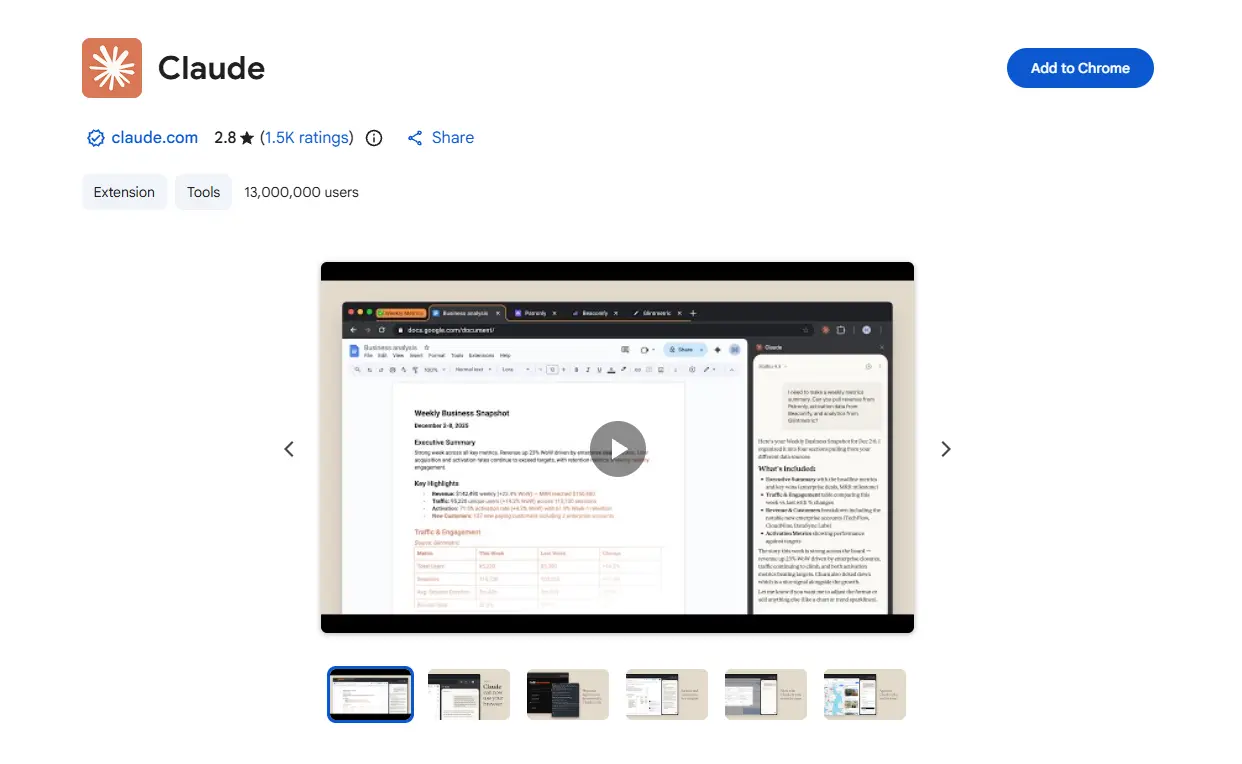
Anthropic publishes the extension on the Chrome Web Store. Avoid third‑party copies or links from forums. Check the publisher name and number of users before installing.
2. Limit where it can run
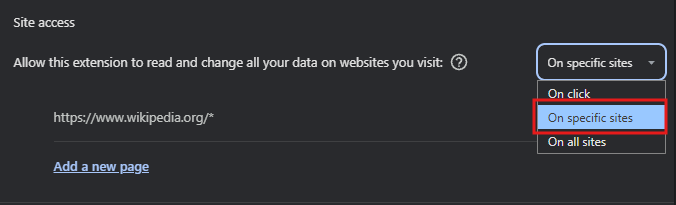
Chrome lets you restrict extensions to specific sites instead of “all sites.” For Claude, that’s a smart move:
- Go to
chrome://extensions - Find “Claude”
- Set site access to “On specific sites”
- Add only the domains where you actually need help (for example, your project tracker, documentation site, or internal wiki)
This stops Claude from seeing your email, banking, or other sensitive tabs unless you explicitly allow them.
3. Use separate profiles for work and personal browsing
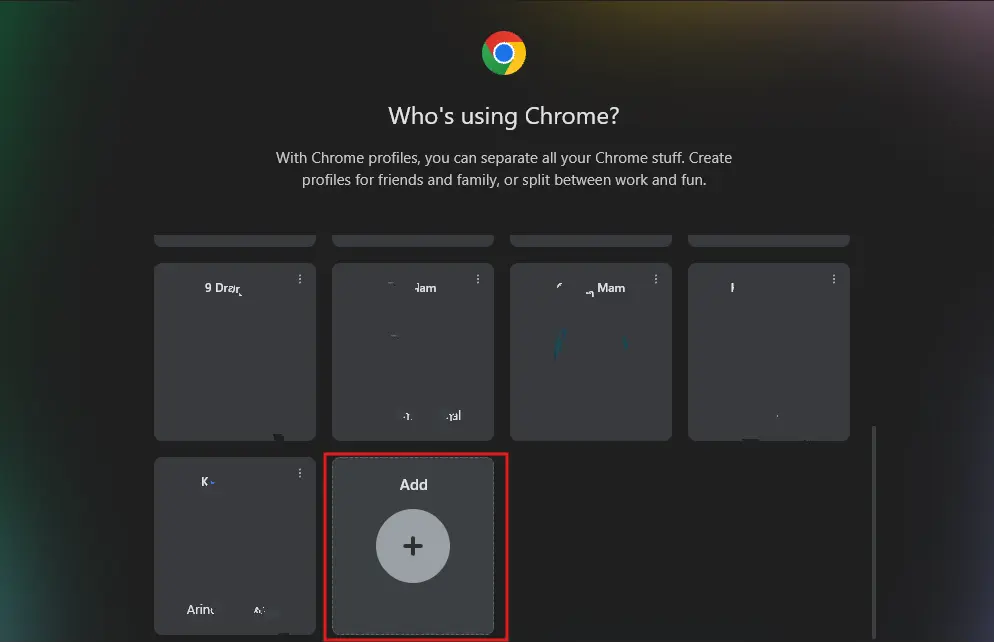
If you mix personal and work browsing in one Chrome profile, Claude’s access applies to everything in that profile. Creating a dedicated “AI assistant” profile for tasks like research, coding docs, or internal tools keeps your personal accounts out of scope.
You can still use the same Claude account, but the extension will only see the tabs open in that profile.
4. Turn it off when you don’t need it
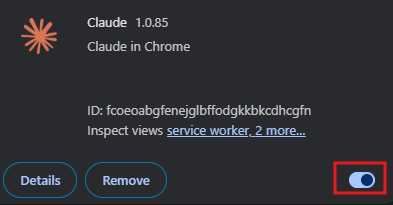
The extension can be disabled temporarily from the toolbar or the extensions page. If you’re doing anything sensitive—logging into admin panels, reviewing HR data, handling finances—just toggle it off. There’s no need to keep it active all the time.
What kinds of tasks make sense and which don’t
Some workflows benefit a lot from browser-level help, others are better left manual.
Good fits
- Filling repetitive forms with known data.
- Extracting structured info from documentation pages.
- Navigating complex internal tools based on clear rules.
- Summarising long articles or specs you’re already reading.
In these cases, you’re giving Claude a narrow, well-defined job on pages you control or trust.
Risky fits
- Anything involving money (payments, refunds, crypto)
- Account settings (password changes, 2FA, email updates)
- Sensitive personal data (health, legal, HR systems)
- Unfamiliar or untrusted websites.
Even if you trust Claude’s intentions, a small misunderstanding can lead to an unwanted click or submission. The official safety docs explicitly warn against letting it operate on sensitive pages without tight controls.
Practical safety habits that actually help
Beyond the basic settings, a few habits reduce risk without killing productivity.
Treat instructions like code
Write prompts the way you’d write a careful script: be explicit about which buttons to click and which fields to fill, avoid vague commands like “fix this” or “do what’s needed”, and specify “don’t submit” if you just want a preview so Claude follows instructions literally. Ambiguity is where mistakes happen.
Review before final actions
For anything that changes state (submit, save, delete, purchase), pause and check the page before confirming. Think of Claude as a very fast intern: useful, but not allowed to hit “send” without your OK. The safety documentation recommends this kind of human-in-the-loop approach for all high-impact actions.
Watch for odd behaviour
If Claude starts opening unexpected tabs, clicking rapidly or repeatedly, or asking for access to pages you didn’t intend, disable the extension immediately and review your recent prompts. These aren’t common, but they’re the kind of edge cases that matter when an AI has browser control.
How data flows and what’s stored
Understanding where your data goes helps you decide what to allow.
When you use Claude in Chrome:
- Page content you interact with is sent to Claude’s servers to generate responses
- The extension does not continuously record your browsing history
- Anthropic states that it does not sell your data or use it to train models without consent, but you should still treat any transmitted data as leaving your machine
The safety docs lay out these points in plain language and recommend avoiding sending highly sensitive information unless necessary. If you’re in a regulated environment (healthcare, finance, government), check with your compliance team before enabling the extension on internal systems.
Common mistakes people make
A few patterns show up again and again in early adoption:
- Installing the extension on a personal profile and then using it on banking or email sites
- Giving it access to “all sites” by default instead of restricting domains
- Assuming it can’t make mistakes because it’s “just an assistant”
- Leaving it enabled during meetings or screen shares where sensitive dashboards are visible
None of these are catastrophic by themselves, but together they increase the chance of an accidental data leak or unwanted action.
When to avoid using it altogether
There are scenarios where the safest choice is not to use the extension at all:
- You can’t restrict site access (for example, managed Chrome with locked policies)
- You regularly handle highly sensitive data in the browser and can’t separate profiles
- Your organisation’s security policy doesn’t yet cover AI browser assistants
In those cases, you can still use Claude via the web interface and copy-paste non-sensitive excerpts. You lose some convenience, but you keep full control over what leaves your machine.
Final thoughts
Claude in Chrome is one of the first mainstream examples of an AI that doesn’t just answer questions but actively operates inside your browser. That brings real productivity gains for the right tasks, but it also means you have to think about permissions, data flow, and failure modes in a new way. The key is to treat it like a powerful tool, not a magic button. Restrict where it runs, keep it away from sensitive pages, write clear instructions, and stay in the loop for anything that changes state. Done that way, you get the benefits of browser-level automation without handing over more control than you’re comfortable with.
Share this publication
Related Publications

What SIMA 2 Could Actually Mean for Game Developers Still Wrestling With NPC Scripts
Google DeepMind's SIMA 2 uses Gemini to play, reason, and adapt inside 3D virtual worlds. Here is why it challenges the 20-year-old NPC scripting pipeline.

Bring Antigravity Multi-Agent AI into Your IDE - Official Extensions Now Available
Google released official Antigravity extensions for VS Code, Visual Studio, JetBrains, and Zed — bringing multi-agent AI orchestration and shared project context directly to your editor.